 RemodelFlowOpen app →
PHONE SETUP
RemodelFlow.
Right on your home screen.
Follow the pictures below. You’ll have an app icon to tap whenever you need it. No app store needed.
Illustrated examples. Your phone’s menus may look a little different.
Install on iPhone or iPad
Use Safari. Four small steps, then you’re ready.
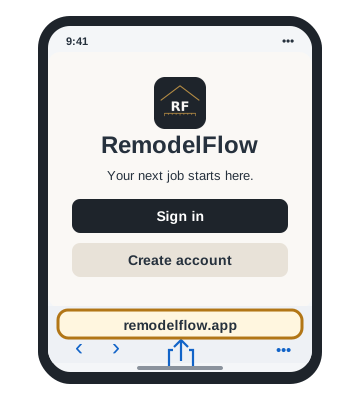
Open the website in Safari
Open Safari on your phone and go to remodelflow.app. Start from the main app page.
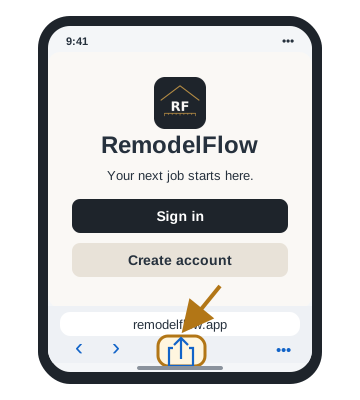
Tap Share
Find the square with an arrow pointing up. If Share is hidden, open Safari’s Page Menu / More (…), then tap Share.
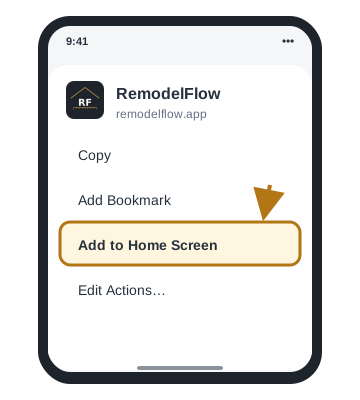
Tap Add to Home Screen
Scroll down the Share menu and tap Add to Home Screen.
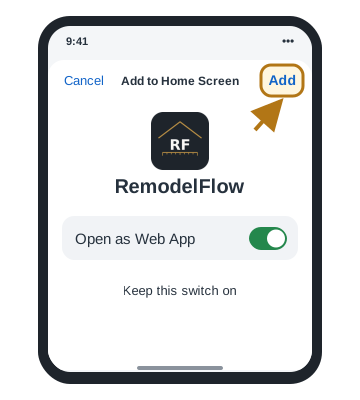
Tap Add. You’re done.
Keep Open as Web App on if shown, then tap Add. Find the RemodelFlow icon on your home screen and tap it to sign in.
Can’t find Add to Home Screen?
Check that you’re using Safari. Scroll to the bottom of the Share menu, tap Edit Actions and add Add to Home Screen.
Need more help? Apple’s installation instructions ↗
Install on Android
Use Chrome. Four small steps, then you’re ready.
Open the website in Chrome
Open Google Chrome on your phone and go to remodelflow.app. Start from the main app page.
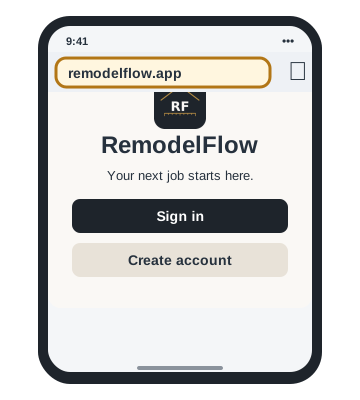
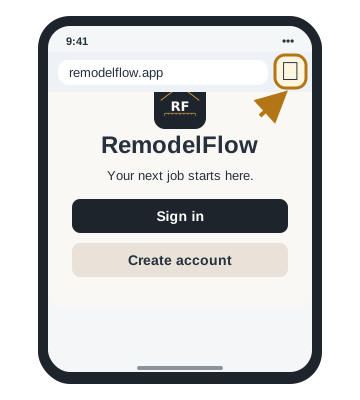
Tap the three-dot menu ⋮
Look beside the address bar, usually in the top right.
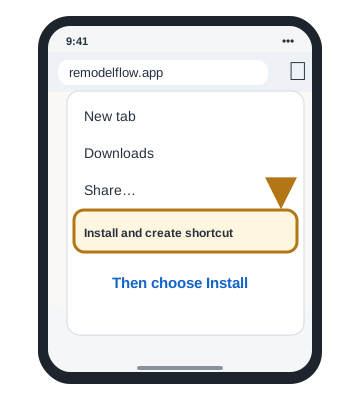
Choose the install option
Tap Install and create shortcut → Install. On other versions, look for Install app or Add to Home screen.
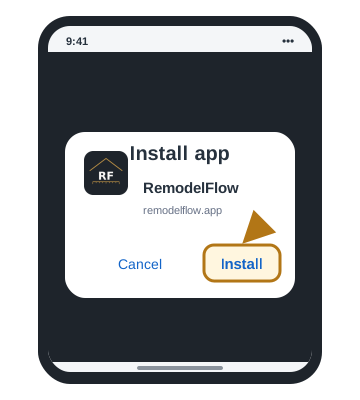
Confirm. You’re done.
Tap Install or Add when asked. Find the RemodelFlow icon on your home screen or in your apps and tap it to sign in.
Can’t find the install option?
Open the main app page in Chrome, allow it to finish loading, then check the menu again. If it’s already installed, look for RemodelFlow in your apps. You can keep using it in the browser too.
Need more help? Google’s installation instructions ↗